Free screenshot tool for Mac · Capture · Record · OCR
Double-tap ⌘.
Frame it. Done.
A macOS menu bar tool that only does three things: an annotated region screenshot, a region recording, and OCR straight into your clipboard.
Free screenshot tool for Mac · Capture · Record · OCR
A macOS menu bar tool that only does three things: an annotated region screenshot, a region recording, and OCR straight into your clipboard.
Clip is a free, open-source screenshot tool for macOS. It lives in the menu bar and wakes on a double-tap of the ⌘ key. You frame a region or click a window, mark it up if you need to, and send it to the clipboard, a file, a pinned window or the OCR engine. It records the same region to MP4 or GIF. It is pure AppKit, a fork of capcap, and requires macOS 14 or later.
No cloud, no team plan, no account. The parts you use every day, and nothing in the way.
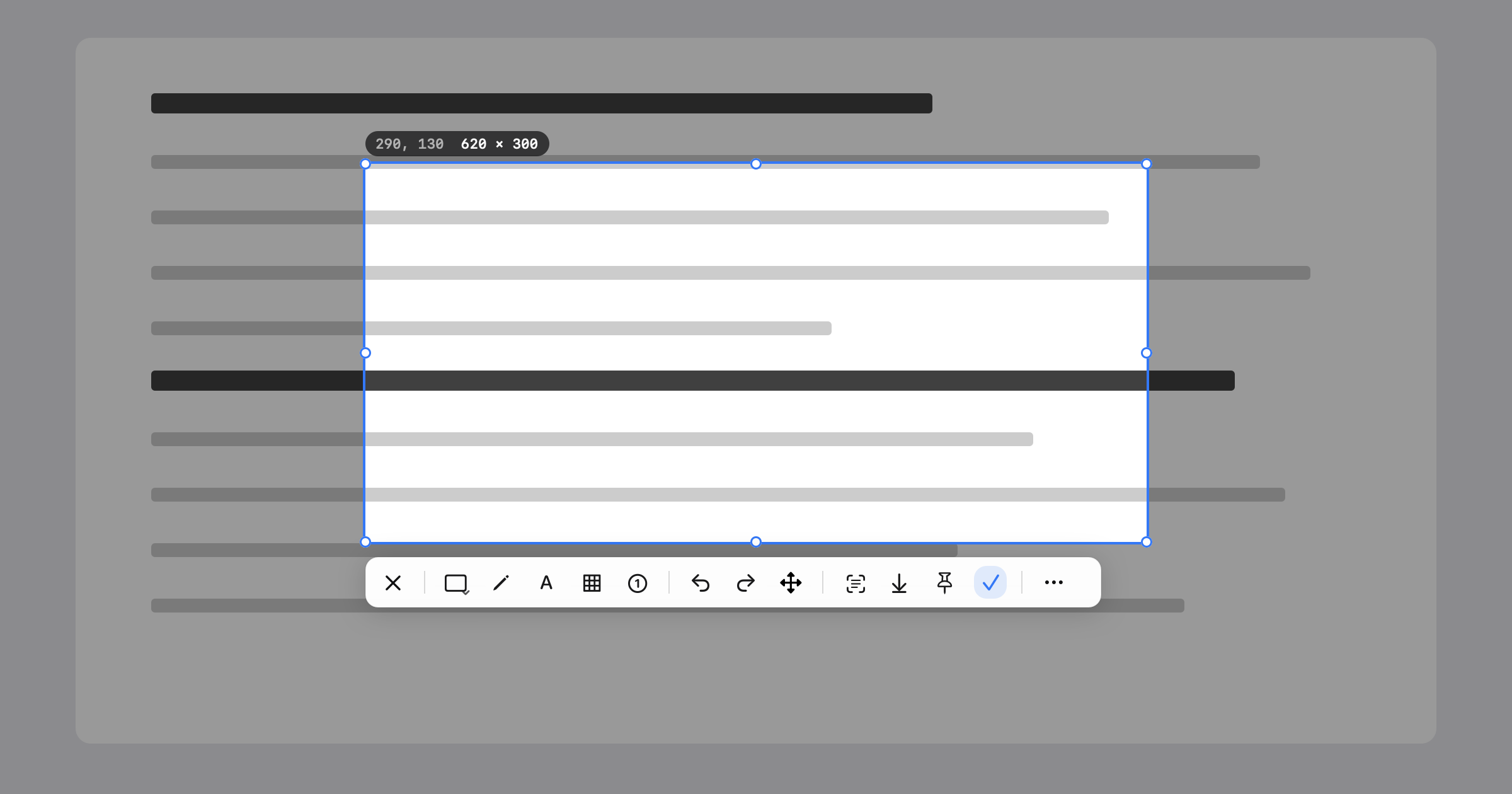
Tap ⌘ twice anywhere. Windows snap to their edges, the selection is pixel-precise, the label shows origin and size.
Rectangle, ellipse, arrow, line, pen, highlighter, mosaic, numbered markers, text. Every mark stays editable, with undo and redo.
The same frame records to MP4 or GIF. A small HUD handles pause and stop.
Apple Vision runs on your Mac. One click copies the text; Chinese and English by default, five languages optional.
Cancel on the left, tools in the middle, outcomes on the right. Nothing is selected when it opens, so there is one bar, not two.
No upload, no account, no telemetry. Native AppKit, open source under MIT, universal binary.
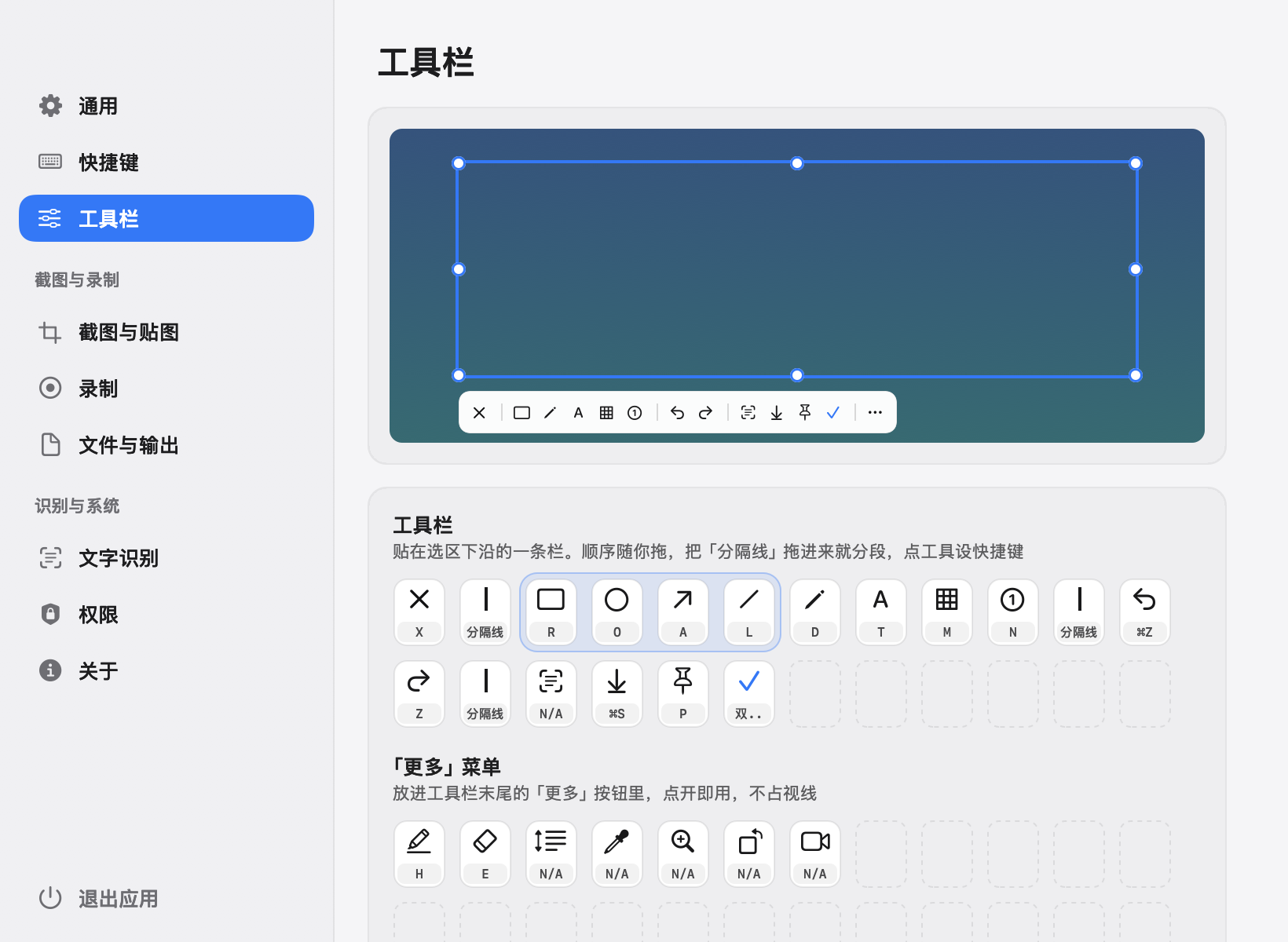
Settings › Toolbar moves any tool between the bar, the “more” menu and hidden. Shapes collapse into one button; long-press it to switch.
Clip is an independent open-source project and isn’t notarized by Apple. Allow it once on first launch; after that it opens like any other app.
Download Clip-0.2.0.dmg, open it and drag Clip into Applications.
Double-click Clip. When macOS says it can’t verify the developer, click Done, then in System Settings › Privacy & Security click Open Anyway.
Accessibility for the ⌘ double-tap, Screen Recording for capture. Clip asks through the system prompts.
Requires macOS 14 or later.
Xcode 26 or later. One script builds, signs, installs to /Applications and launches.
git clone https://github.com/chengffei/clip.git
cd clip
bash scripts/rebuild-and-open.sh
The Command Line Tools alone cannot build the SwiftUI macros used by the permission panel.
One gesture to start, one to finish.
| Region screenshot | ⌘⌘ double-tap |
| Confirm to clipboard | ⌘⌘ again |
| Cancel | Esc |
| Record, OCR, pin, full screen | Settings › Shortcuts |
Common questions about installing and using Clip.
Double-tap the ⌘ key. Drag a region or click a window, annotate if you like, then press the check mark or double-tap ⌘ again to copy it to the clipboard.
No. Clip has no cloud upload, no account and no telemetry. Screenshots go to your clipboard or to a folder you choose; OCR runs on your Mac with Apple Vision.
Clip is signed but not notarized by Apple. Open it once and dismiss the warning, then go to System Settings › Privacy & Security and click Open Anyway. You only need to do this once.
Accessibility, so it can see the ⌘ double-tap, and Screen Recording, so it can capture the screen. Clip asks for both through the system prompts.
Yes. Clip is free and open source under the MIT License. It is a fork of capcap, which is also MIT licensed.